Showing posts sorted by relevance for query images. Sort by date Show all posts

Tuesday, April 22, 2014

Using Images In Blog Posts (Part 1) ~ by Todd Burleson and Patricia Toht

As new bloggers, we're on a steep learning curve about posting. One technique we'd like to master quickly is using images.

Todd: You've heard the adage that a picture is worth 1,000 words right? How many times have you struggled to find just the right image to help illustrate your point?  And, more troubling, how many times have you found an image and wondered if you could use it?  "It's just a blog post.  Nobody else will really care right?" 

I'm a visual thinker; images help me communicate in all facets of my life.  I write tutorials for my colleagues and I've been told that the images I use are very helpful.  For nearly a decade, I was a professional photographer and I experienced first hand the theft of my images, so this particular article has some personal relevance as well.

Why use images?

1.  Articles with images get 94% more views. 
Isn't this why we do what we do? We want people to read our work.  Putting images into our posts or projects ensures more of our readers will in fact do that; read.

2.  Images drive more blog comments and engagement.
"If you have images that are not only relevant to what you are writing about, but trigger some kind of emotion within the reader, not only are they going to be more engaged with the blog post, but they are subsequently more likely to comment."*

3. "An image can help make make your blog post look better.  It makes blog posts easier to read, more aesthetically pleasing, and provides an overall better experience for the reader.  Again, something that every writer should want to do."*

4.  "An image can help explain something technical or data heavy by using charts, graphs or diagrams, or it can help make a "How To" post a lot more easier to understand by using screenshots."*


It's all about images [Infographic] 

Infographic by MDG Advertising


Where to get images?

Patricia: You may be familiar with the Rolling Stones song, "You Can't Always Get What You Want". Well, with images the refrain would be "you can't always USE what you want."

Images are easy to come by on the internet. But the great majority of these are protected by copyright and can't be used without permissions and/or payment. So what's a blogger to do?


One of my own from an Easter market.

First option is to mine your own photos. Use your phone or camera to capture interesting images. If something catches your eye, it may catch your readers' eyes, too. 


(Remember, if you photograph people, or you must secure permission to use their likenesses.)


A cute puppy from morgueFile.

Another option is to find images that are free or low-cost. I've used morgueFile, which has an easy search function. Selecting an image will pull up its details, including a list of permissions and resolution. 


A bouquet for you from freeimages.


I've also used freeimages.com. A search option will turn up a selection of "premium images" which cost, but below those are images for no cost. Check in the "availability" box for instructions about notifications and accreditations.


I'm now starting to work my way through a wonderful list of options gathered by Blogging Bistro, "20 Terrific Places to Find Free and Low-Cost Stock Photos Online"

In our Part 2, we'll delve into the "how" of using images and tell you why you should NEVER use an image in your post without proper permissions, attributions, and/or payment.

* "Images -- 10 Reasons Why You Need Them In Your Content (Zemanta Guest Post) รข€¢ InboundWriter." InboundWriter. N.p., n.d. Web. 23 Mar. 2014.
If you have images that are not only relevant to what you writing about, but trigger some kind of emotion within the reader, not only are they going to be more engaged with the blog post, but they are subsequently more likely to comment. - See more at: http://www.inboundwriter.com/content-marketing/10-reasons-why-you-need-images-in-your-blog-posts/#sthash.KKBq68yE.dpuf

Thursday, June 15, 2017

Working with Images in Websites and Blogs

By Leslie Colin Tribble

In our visually-conscious world, images are king. Think Pintrest, blogs and websites - what do they have in common? Compelling images. Anyone who has a website or blog sooner or later is going to need to find and manipulate images to enhance a post. If this is you, read on for some tips on utilizing images to spruce up your online presence.

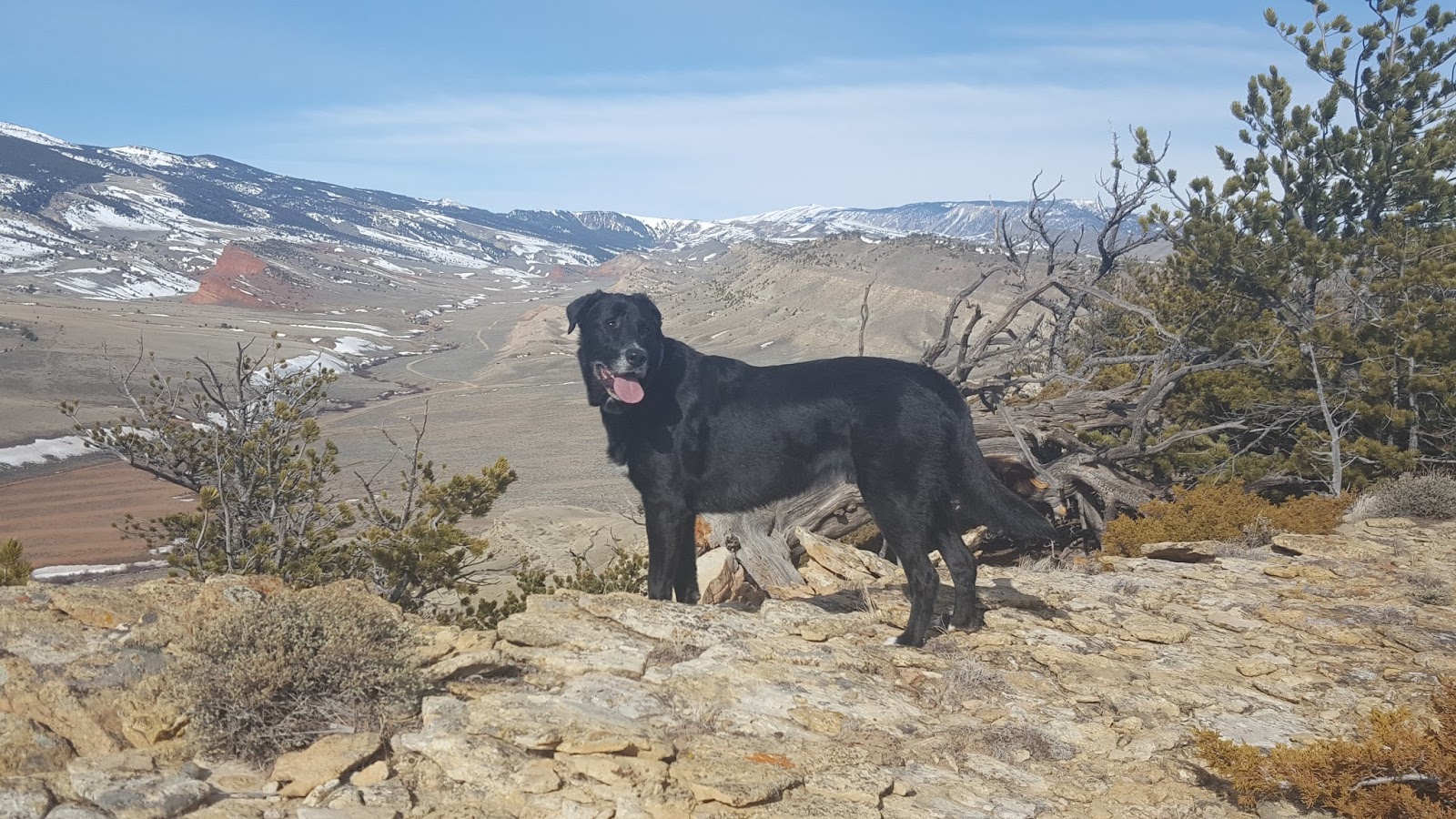
Unedited photo


Finding Images
There are lots of sites on the Internet where you can find images to use on your website or blog. The trick is doing it correctly. In our archives, the Grog has some posts about finding images (here and here). Pixabay has royalty-free images with no attribution requirements. One good tip I read is to block out some time and find as many photos as you can pertaining to your most used topics and download them all at once. Then you won't have to spend time finding just one photo for a particular post. Be sure to keep all photos in a folder with a good, detailed names and any attribution so you don't have to try and find it later.

Cropped, and edited for brightness, contrast, and color saturation. Plus I added a watermark.

What to do With Those Images
Photos are easy to resize and enhance with a good photo editor. If you don't want to invest in Photoshop, try some free online editors such as PicMonkey, Gimp, and Photo Pos Pro. If you know a little about photography and editing, a more complete program such as Gimp might be just the ticket. If you're more like me and simply want to spruce up an image and give it a little resizing, PicMonkey is easy to use and saves images right to your computer.

I used PicMonkey on all the images for this post.

Unedited

With PicMonkey, there's an auto adjust tab that will brighten and sharpen a photo. If you want to do it yourself, there are tabs for that as well. Generally speaking, you want a photo to complement your post, not overwhelm it. Resizing images to a width of 300-800 works best. You want them to be the same width as your post or slightly smaller. If you're using PicMonkey, click "Keep Proportions" otherwise your image will be distorted.

Cropped and auto adjusted

Once you have your image edited, you can save it to your computer then upload to your WordPress Media Library where you can access them for future use. Having images ready to go saves a lot of time and frustration.

Unedited

I used all sorts of fancy editing to enhance this little marmot!

You should caption your images using some good SEO (Search Engine Optimization) terms. Remember, Google can only search text so if you don't caption your images, Google won't find your post as easily. Also, don't lead with an image for the same reasons. Lead with an attention-grabbing headline and tagline, followed by the image.

Most of these tips came from a website I've found to be incredibly useful for setting up a blog and website. Amy Lynn Andrews has been helping newbies develop an online presence for years and I find her work thorough and easy to follow.

Don't be intimidated by using good quality images in your posts. It's easy to do and fun!

Friday, December 18, 2015

The Sounds of Silence


By Janie Reinart

You need to hear what you're writing
and for that you need silence
~ Philip Pullman.

As we enter into the winter season, I invite you to embrace the stillness. Stop and take a breath

Writing and thinking are interconnected. Part of my writing process is luxuriating in the quiet around me. When I find that time, the silence becomes sacred

Here are some thoughts from creative people embracing silence.


“Without great solitude no serious work is possible.” ~ Picasso


“When I am, as it were, completely myself, entirely alone, and of good cheer–say, traveling in a carriage or walking after a good meal or during the night when I cannot sleep–it is on such occasions that my ideas flow best and most abundantly.”~Mozart


“On the other hand, although I have a regular work schedule, I take time to go for long walks on the beach so that I can listen to what is going on inside my head. If my work isn’t going well, I lie down in the middle of a workday and gaze at the ceiling while I listen and visualize what goes on in my imagination.” ~Albert Einstein


There is something greater and purer than what the mouth utters. Silence illuminates our souls, whispers to our hearts, and brings them together. ~Kahlil Gibran


“One of the greatest necessities in America is to discover creative solitude.” ~Carl Sandburg


"Be alone—that is the secret of invention: be alone, that is when ideas are born.”~Nikola Tesla


"To communicate through silence is a link between the thoughts of man."  ~ Marcel Marceau

Wishing you peace and prosperity in the New Year and time to hear what you are writing. The GROG writers are stopping for a breath. We will be back January 4, 2016.

Tuesday, May 13, 2014

Royalty Free Images from Getty in Six Easy Steps


by Janie Reinart

To learn how to add the royalty free images, I started with a chat session on the Getty images site:

Welcome! You are now chatting with Kevin.

Kevin: Hello! How can I help you today?

Janie: Good morning!  I wanted information about using the royalty free (RF) embedded images on your site.

Kevin: If you are not using the image for marketing, advertising or promotion of a business you can take advantage of the embed feature.

Janie: So that means you do not pay for use, correct?

Kevin: correct

Janie: Do you need an account if you embed?

Kevin: You do need to register to use the embed feature.

Janie: Okay. Step one register and fill in the account info.

Kevin: If it is just a blog.  Just get it as close as possible for account info.

Janie: Thank you. Do you need to do anything with the RF photo other than embed the code.

Kevin: Just copy and paste.

Janie: Perfect. I can do that! Thank you, Kevin for taking the time to answer my questions.

Kevin: Thank you for chatting today.  We value your feedback.  

One page registration 

This is what the registration page looks like. I left my info on the second part of the registration. You can see my answers. The phone number I listed is a Google voice number that is free and keeps my personal cell number private.


Step Two
Use the drop down menu under Creative Images to search for royalty free images. Click on Royalty-free.


Step Three

Under search check the royalty free box, photography and illustration. 


Step Four
Type in the subject you are looking for in the search box.

 Step Five
I searched for hats. Look for this symbol. Click on the embed symbol, then copy and paste the code into your blog post.


Step Six 
Place your cursor in the spot you want the picture on your blog post. Paste the embed code of the photo in the HTML section of your blog draft and return to compose mode. Enjoy adding pictures to your blog posts!